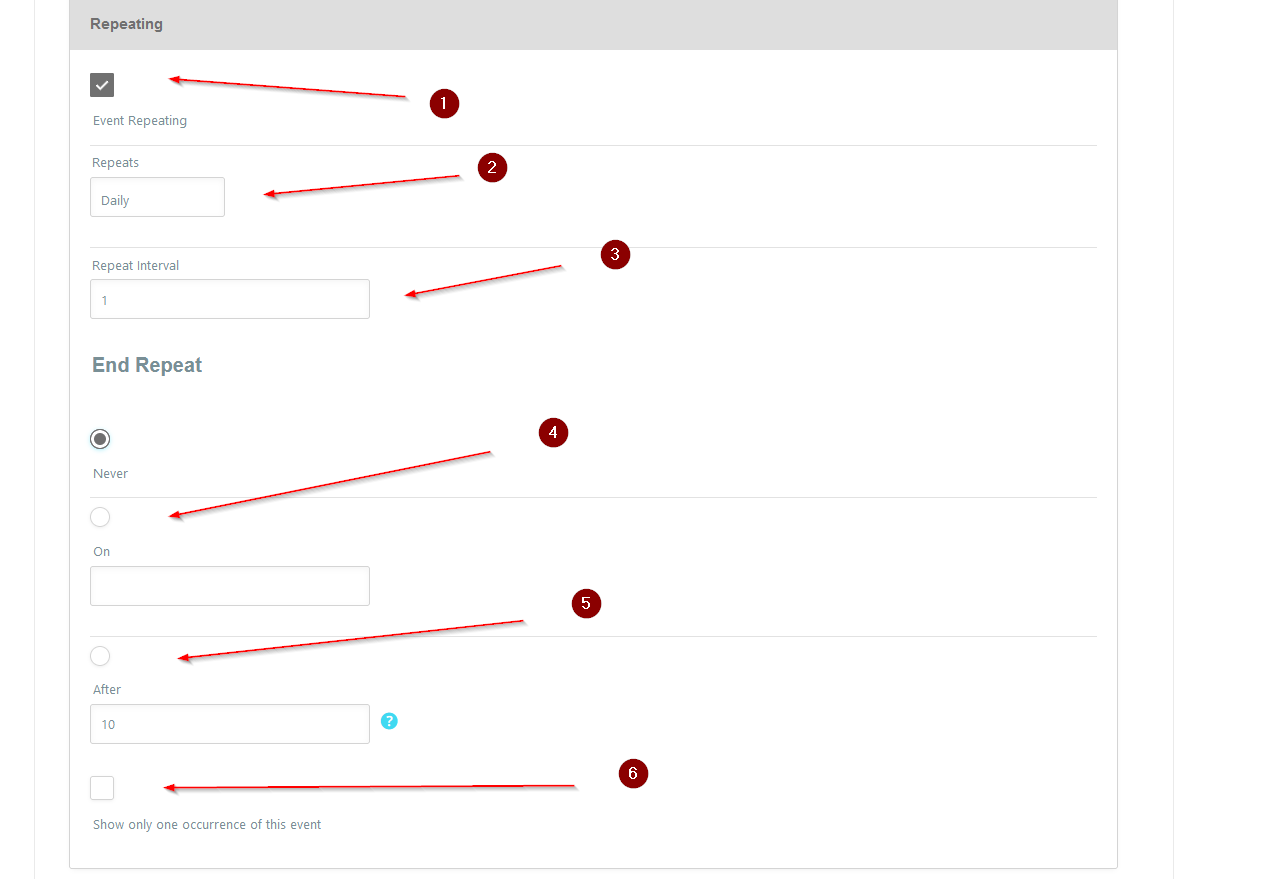
This is an important part to the setup of your availability. Here we can setup you event to be:
- Once
- A few times in a year
- Every week on thrusday
- Every day
- Every wednesday and friday
- Every Second thursday in the month
- Multiple custom days
- Any many other variations
If this is a One off booking – then do not select the Event Repeating option. However if it does happen often, then select this checkbox. More options will be displayed.
- Repeating checkbox
- Select what kind of repetition
- Repeat interval – eg: if you select Daily repeats, and set the Repeat interval as 2 then the booking is available every 2nd day (every other).
- End repeat – if this is always ongoing, then leave it as never
- On – if you wish to stop offering this repeated booking in 6 months time – then add a date 6 months from your time now.
- After – if this is available to repeat for 10 times and then to stop – enter 10
- Show one occurance – If you wish only once time for this event to appear in calendar listings select this. When a user views the event they will see additional days available.
Repeating types:
- Daily – self explaintory and has no further options
- Every Weekday – self explaintory and has no further options
- Every Weekend – self explaintory and has no further options
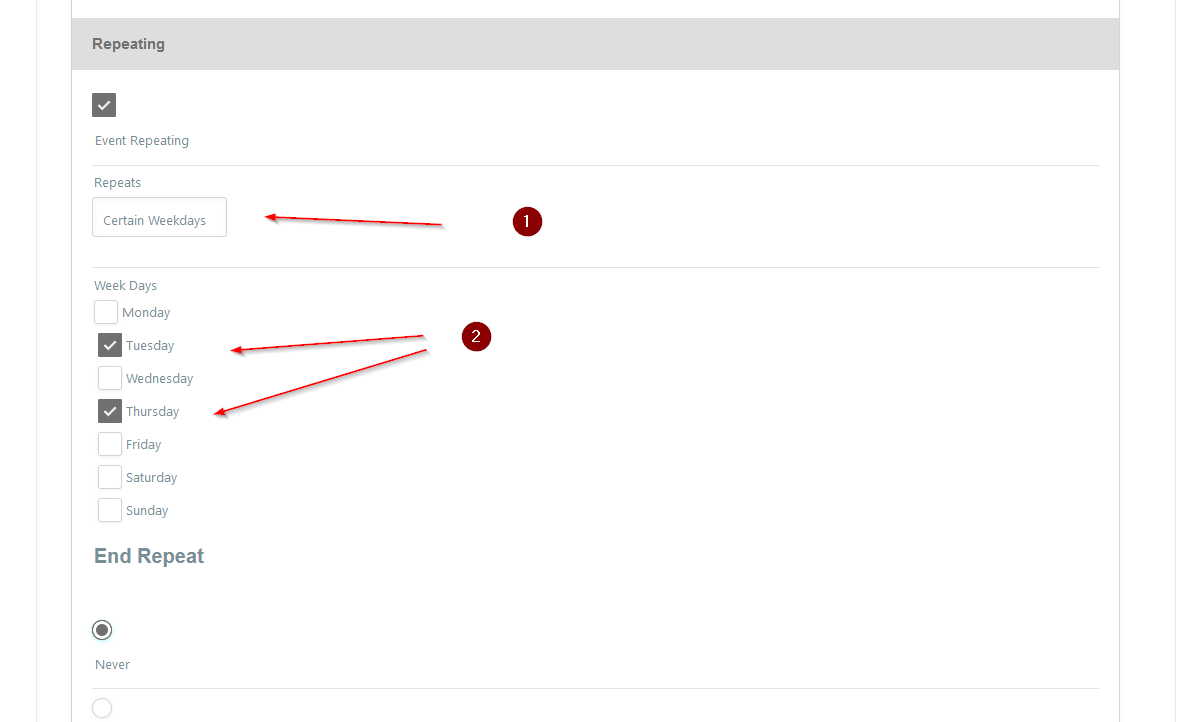
- Certain Weekdays – An option is displayed where you can choose the days of the week the event will repeat
- Weekly – repeats on the same day every week.
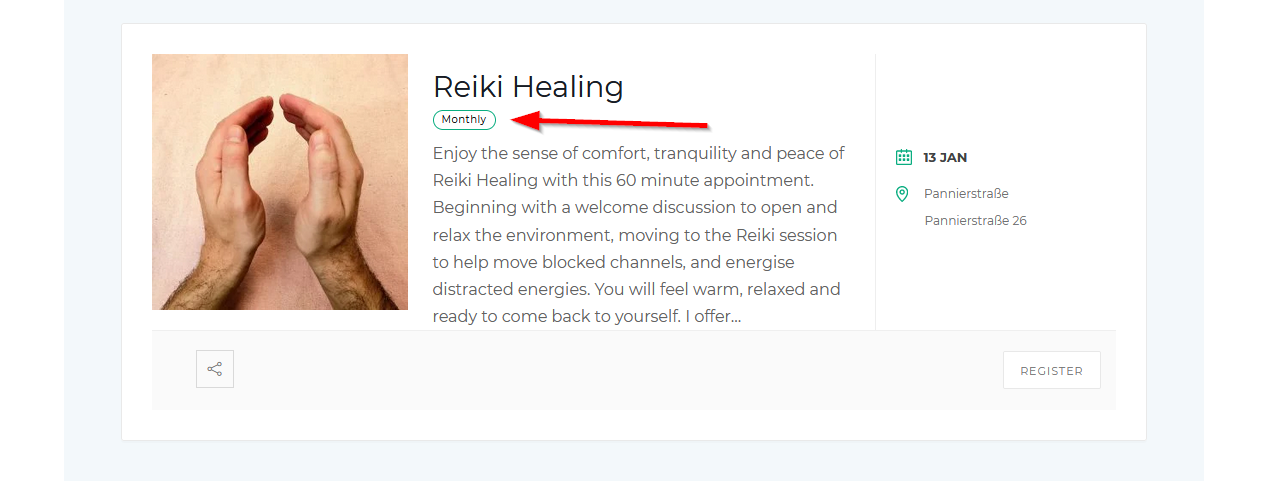
- Monthly – repeats on the specific date, not the day.
- Yearly – repeats on the date
- Custom Days – enter the dates of your event and select Add to each date range you wish to add.
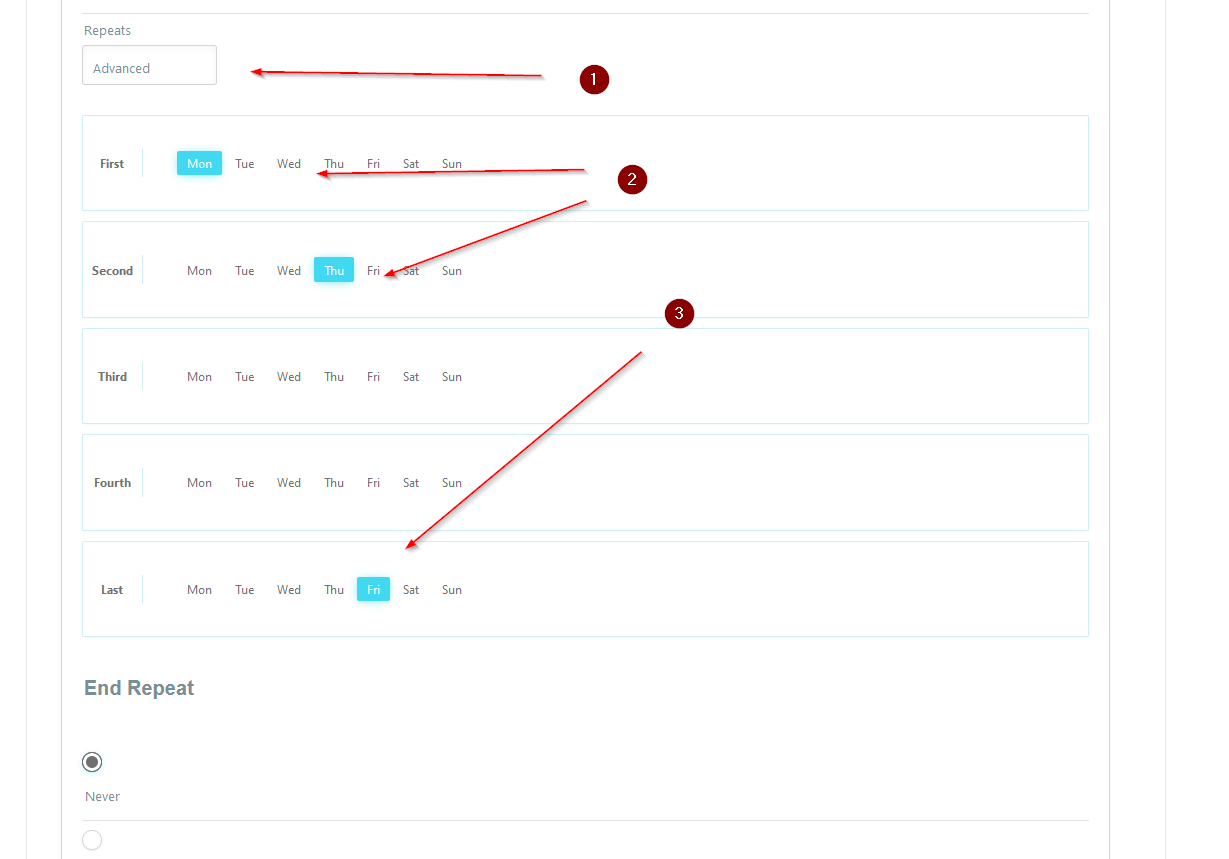
- Advanced – here you can select the days in the month precisely
The repeating type is displayed in the location or organiser page.
Scenarios.
This is the help certain situations which can cause confusion.
I offer a massage every Tuesday and Thrusday:
- 1. Select ‘Certain Weekdays’ from the options. You will see a set of checkboxes available
- 2. Choose Tuesday and Thursday as the day you wish to offer the bookings
I offer a massage every first Monday, every second Tuesday and last Friday of a month:
- It does not matter on the date which you select as the starting date in section Date and Time the precise starting day will be ignored
- Select the ‘Advanced’ option
- Chose the specific days
- The ‘Last’ row allows compensation for longer or shorter months in accorance with the Fourth row and when the month starts