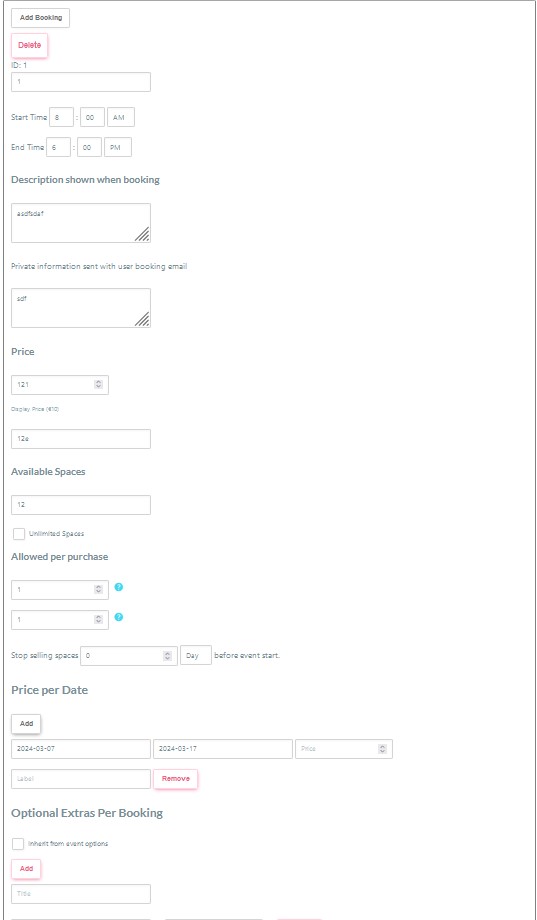
The Bookings (Overview) guide will help you understand how to use this seciton.
Rememer to Submit your changes at the bottom of the entire form. Otherwise you will lose your work.
Add Booking
This will add a new booking below all the other bookings
Delete
This will delete the Booking below the button. Please be careful to be sure which one you are deleting.
Title and Date
The date will not be displayed if you have selected ‘All Day Event’ in the ‘Date and Time Section’
Description
This section is where you can describe the booking – it might also include conditions on the booking. eg: this is a reservation booking – final payment is required by bank transfer.
Start/End Time
This will be displayed with the Booking option. If you have selected ‘All Day Event’ the times will not be displayed.
Price
enter the price in number format
Display Price
Enter the price with the currency symbol. eg: the price is 12. The display price should be entered as 12€ or €12 with the curreny symbol.
Available Spaces
add your available spaces for the booking. If it is a personal appointment this will be 1. If it is a retreat for 200 people then add 200. This number will not be alloew to go higher than the number in Total Booking Limit section. This can be set to Unlimited if you want to have no restriction. The total Booking Limit section will be applied to each booking option you create in the event.
Allowed Per Purchase
This section is a min/max per purchase. It will ensure a user purchases a least the minimum, but not more than the maximum.
Price Per Date
This section allows you to adjust the prices for different dates in the date range.
Optional Extras Per Booking
If you wish to add additional options. Eg: a hotel room upgrade costs 200 euros. Or you wish to offer additional Master class at an additional 100 euros.