When you receive a booking from a user, there will be a notification sent to your Organiser profile email address. Make sure this is informaiton correct – it is not your registered user profile email address. Check setting up Organiser profile Help section. If you have set your booking to auto confirm you will not need to take these steps to confirm the booking. However you may need to adjust or cancel bookings which can alsobe done from here.
Version 1.1 15/12/23
- Receive Email
- Manage Bookings
- Select Booking to view
- Confirm
- Verified?
1. Receive Email
You will receive an email notification about a booking made. Please confirm or contact the client ASAP to agree any changes. Ifyou reject the booking please contact the client to explain why it was rejected.
2. Manage Bookings
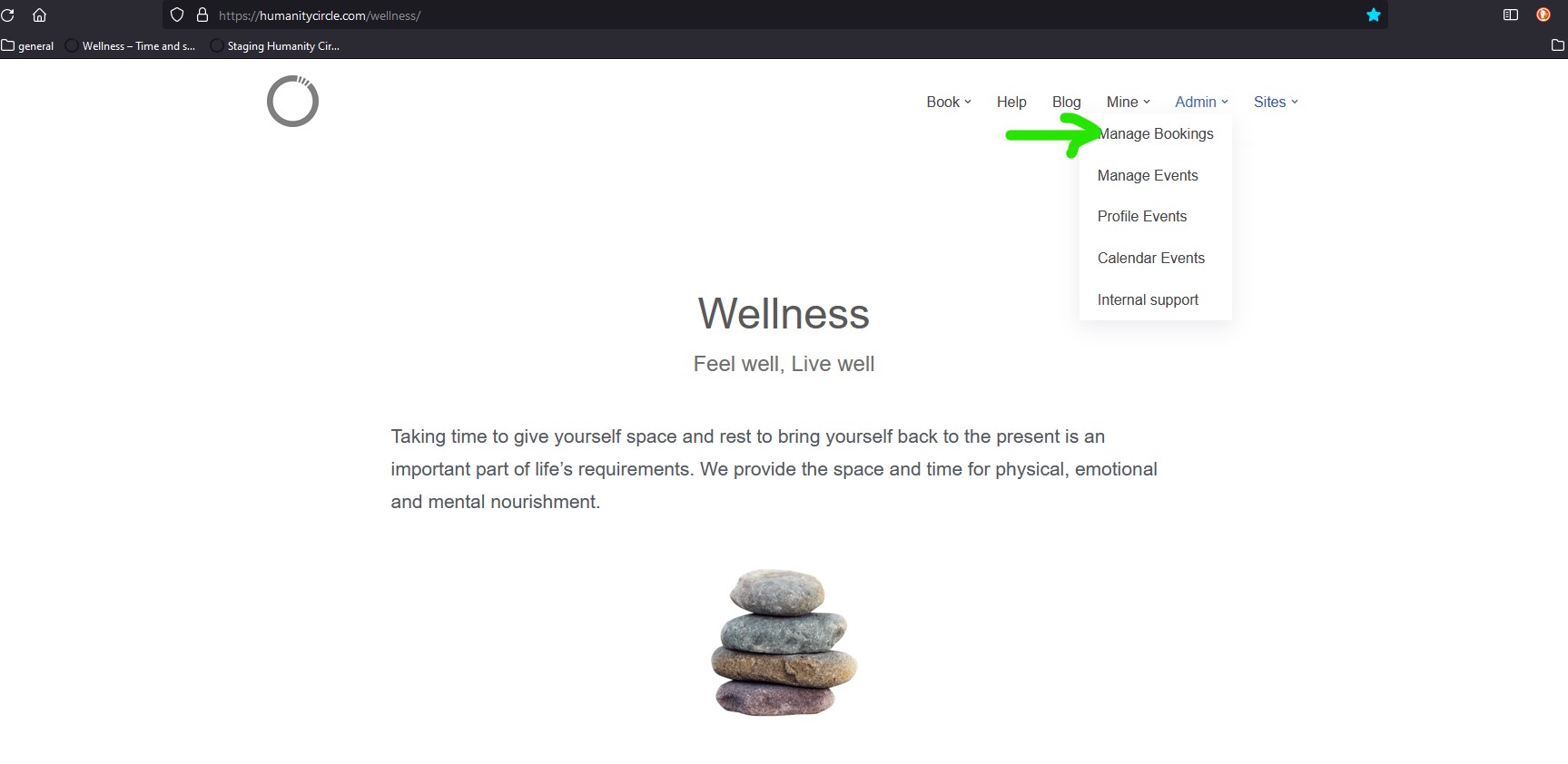
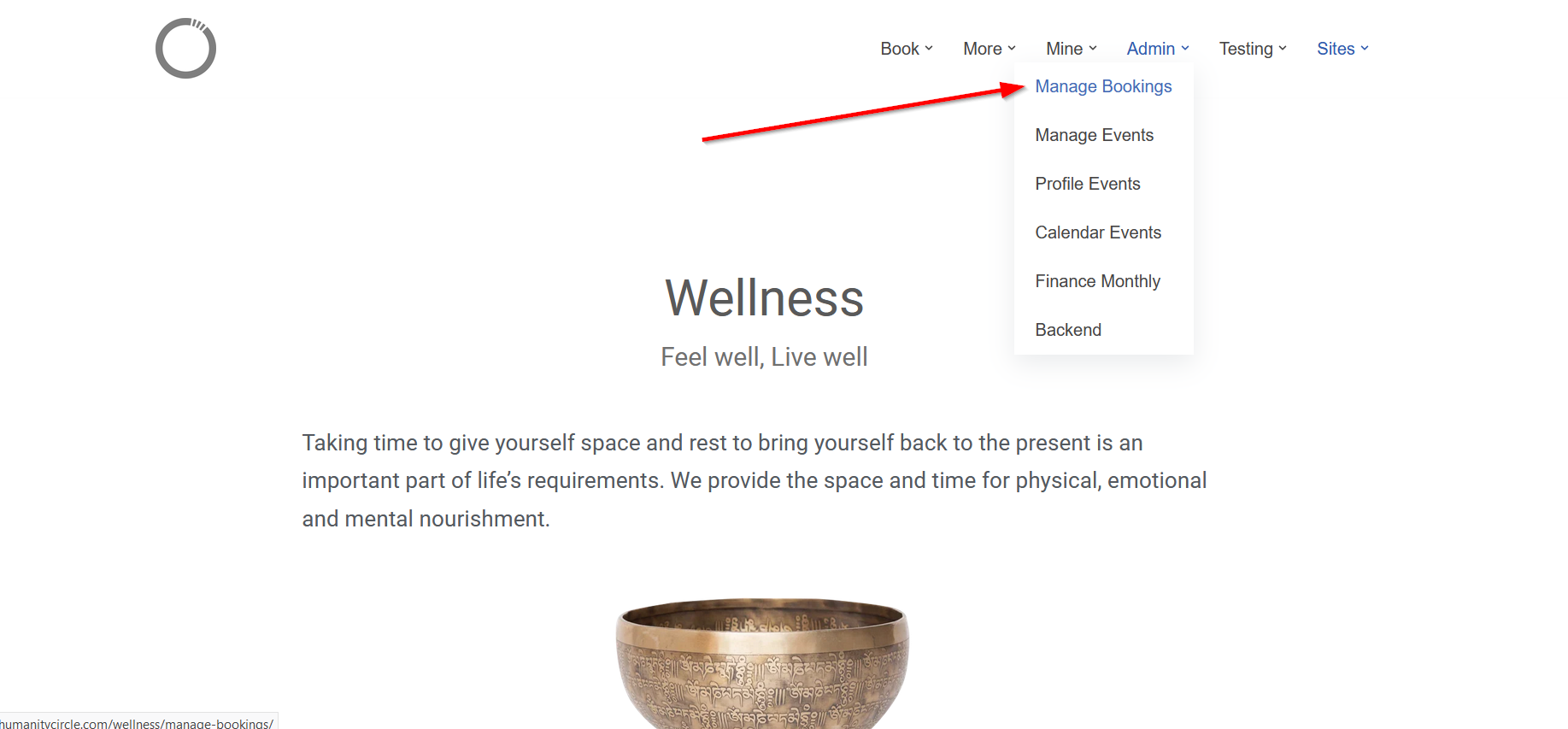
You can find the Manage Bookings menu once you are logged in. You must have either Organiser or Booking Manager rights to your profile.
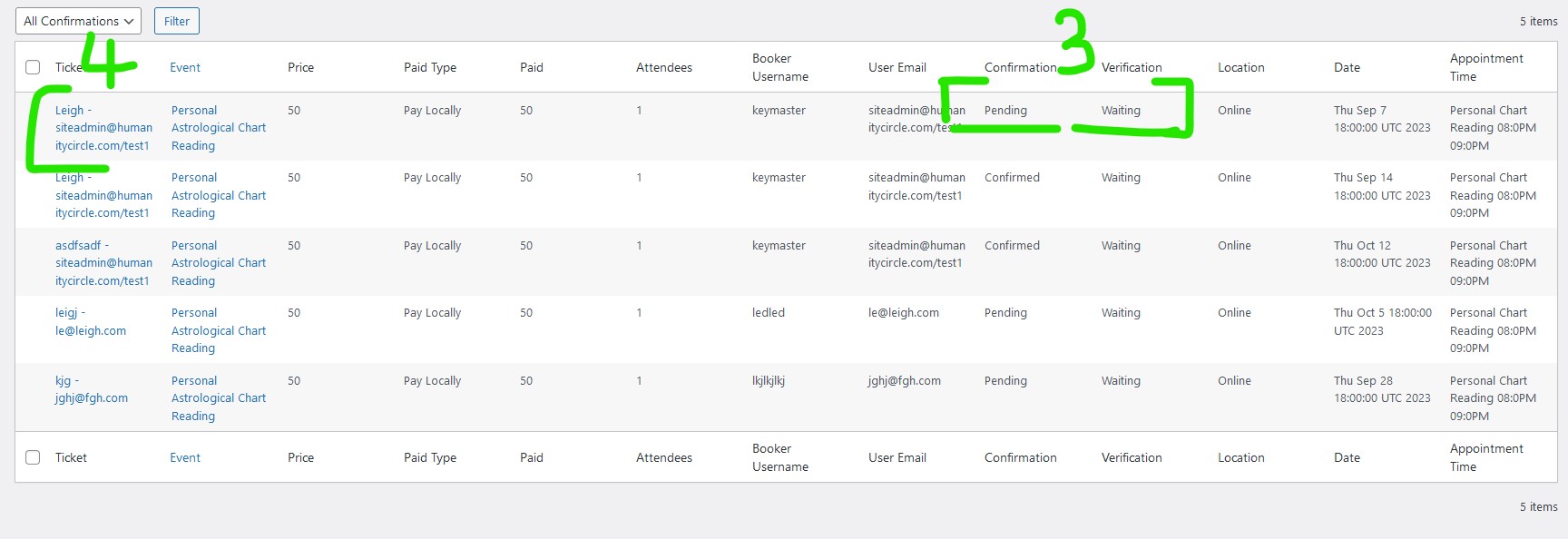
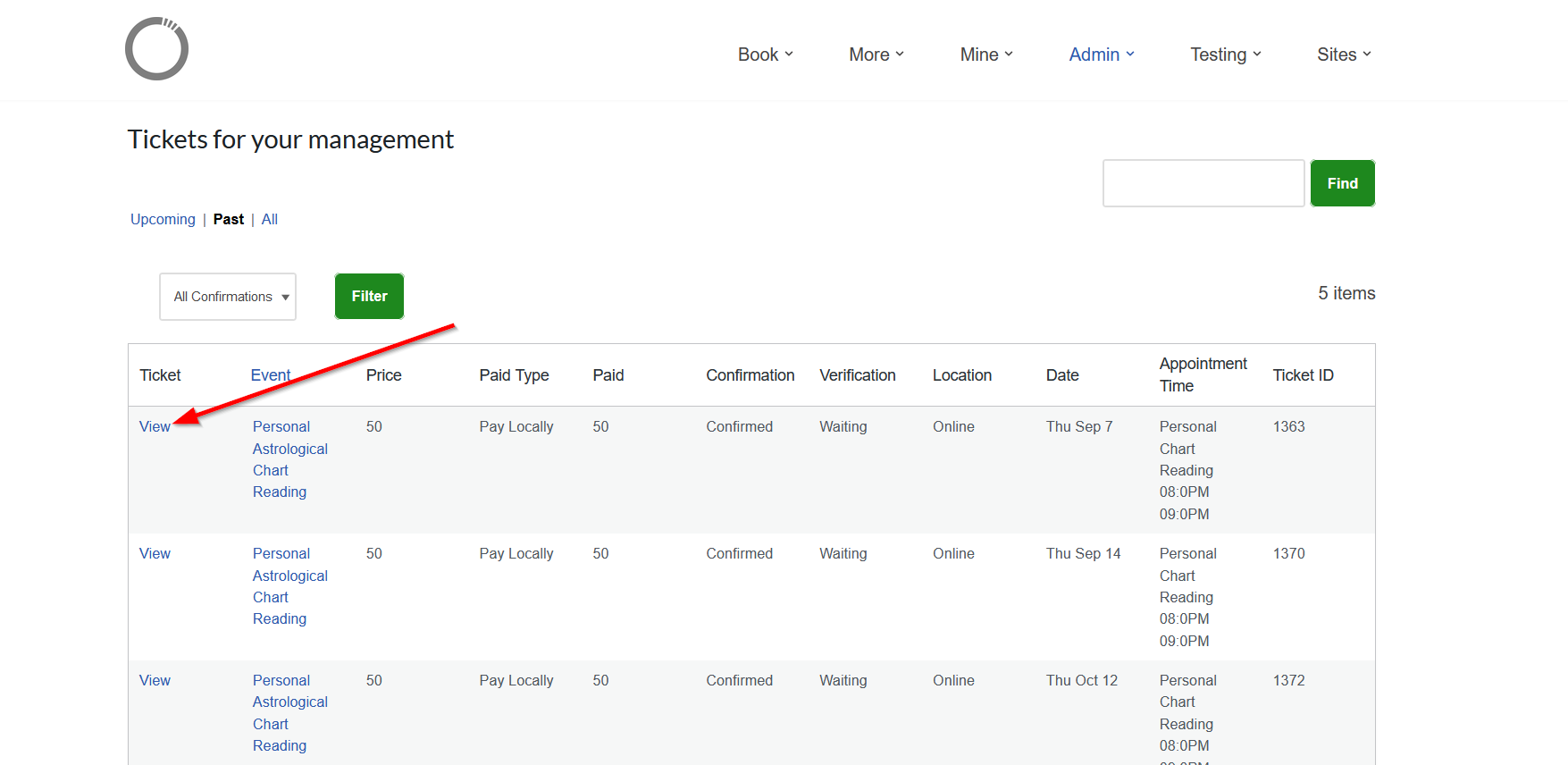
3. Select your booking to view
Select the booking which you wish to update
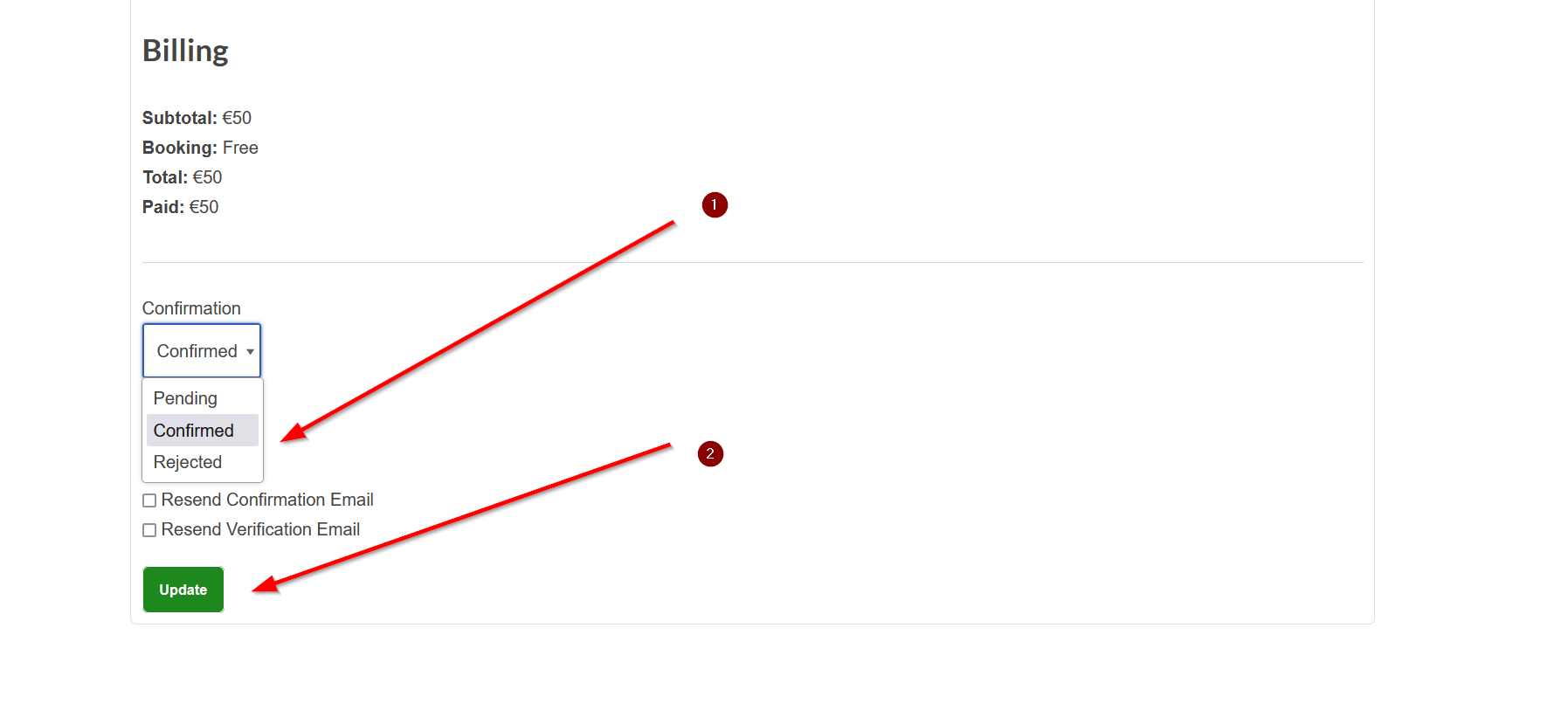
4. Confirm
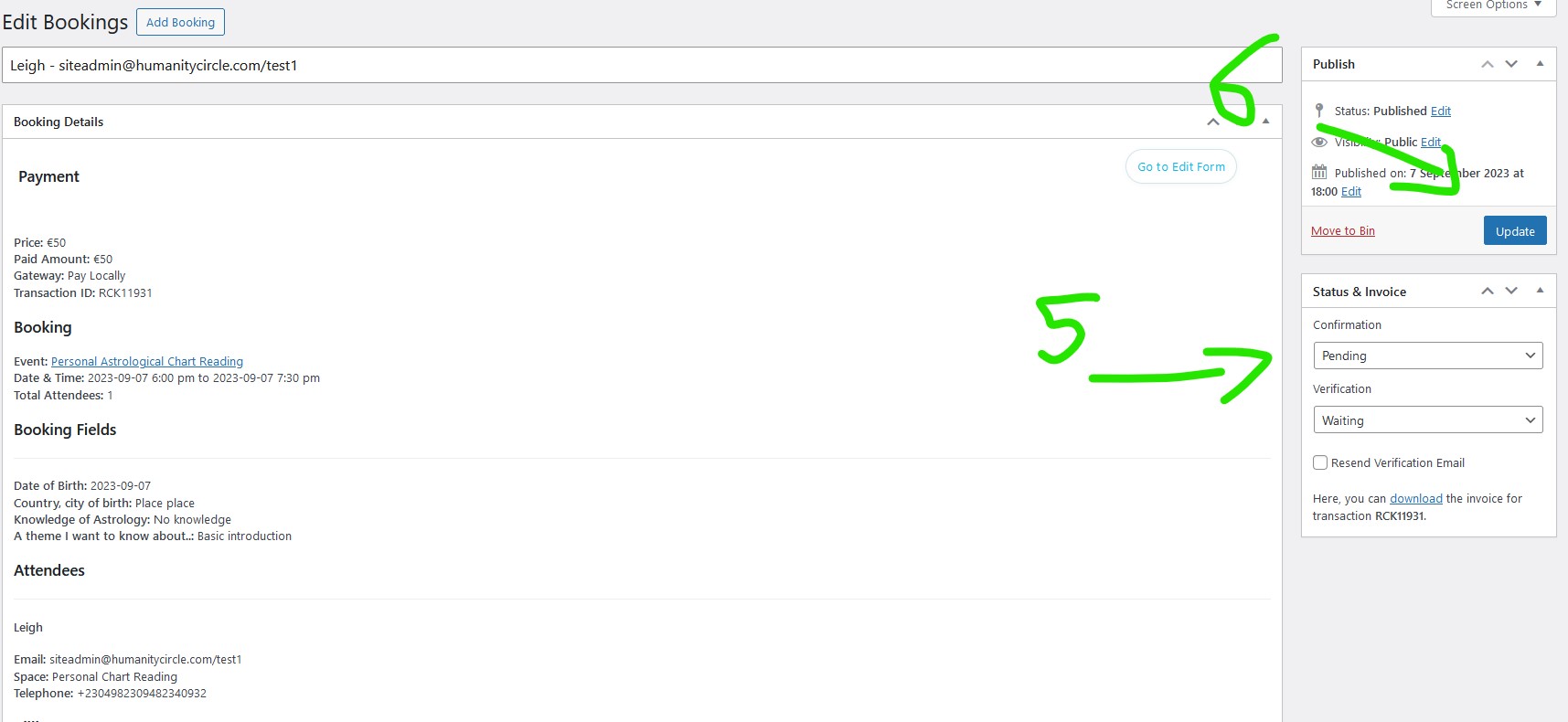
Select the dropdown option to either Confirm, or Reject. The client will receive an email immediately.
5. Verified?
If you wish to ensure the email address is verified or wish to confrim it manually you can set it here.
Resending the confirmation or verification email can be useful when requested by the user. It it contains relevent information to the booking. The verification email resend is only available when the client is not verified.
You can view this booking at any time, select the check box for which email you wish to resend and click on Update. The email will then be sent.
Version 1.0 01/10/23 – old
There is a link to the ticket management section of the website. You need to be logged in before it is possible to access the informaiton. You can also select the Admin->Manage Bookings menu once your are logged in. Click on the images below to open larger version in a new tab.
You will find a list of bookings made for your events.
- Select Manage Bookings in the top right hand menu under Admin ->Manage Bookings
- You will be directed to the website backend where you will find your bookings
- Each booking tells you the status and if they are email verified.
- Selected the booking title to view the ticket in detail.
- On the right hand side you will find the Status and Verified section.
- When you wish to Confirm the booking, change the selection to Confirmed and select update.
- The user will receive a confirmation email and the invoice for what they have paid.
nb: This section is currently under development. When completed you will be able to complete all this in the normal website area.